
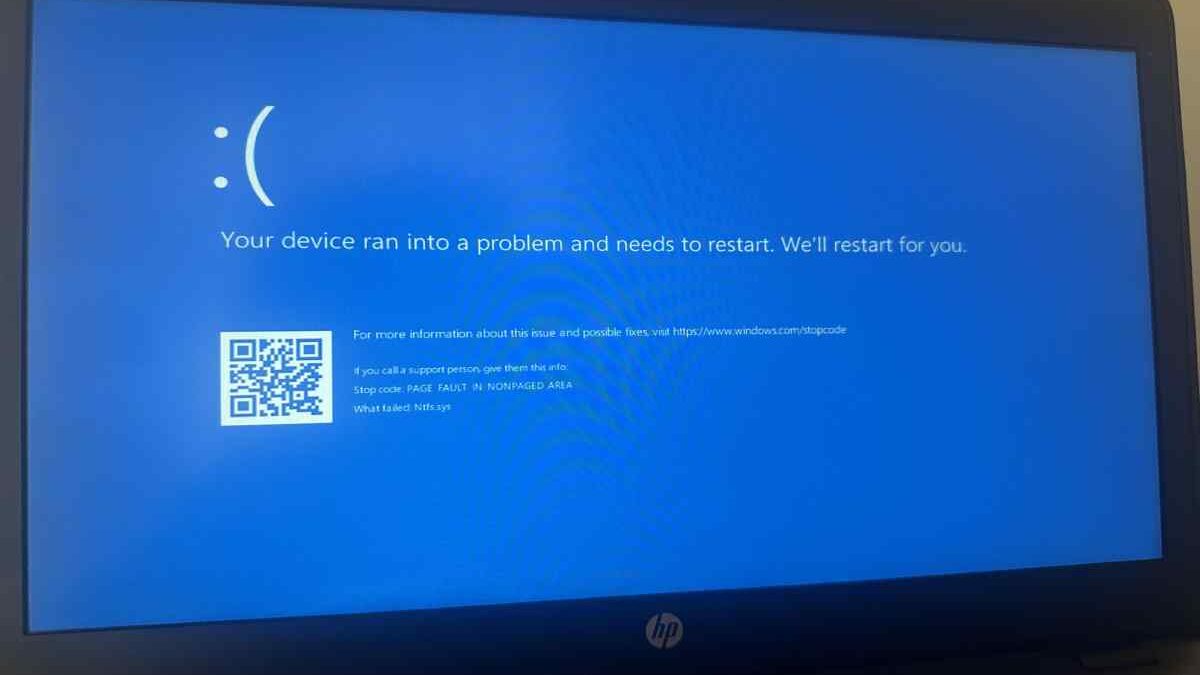
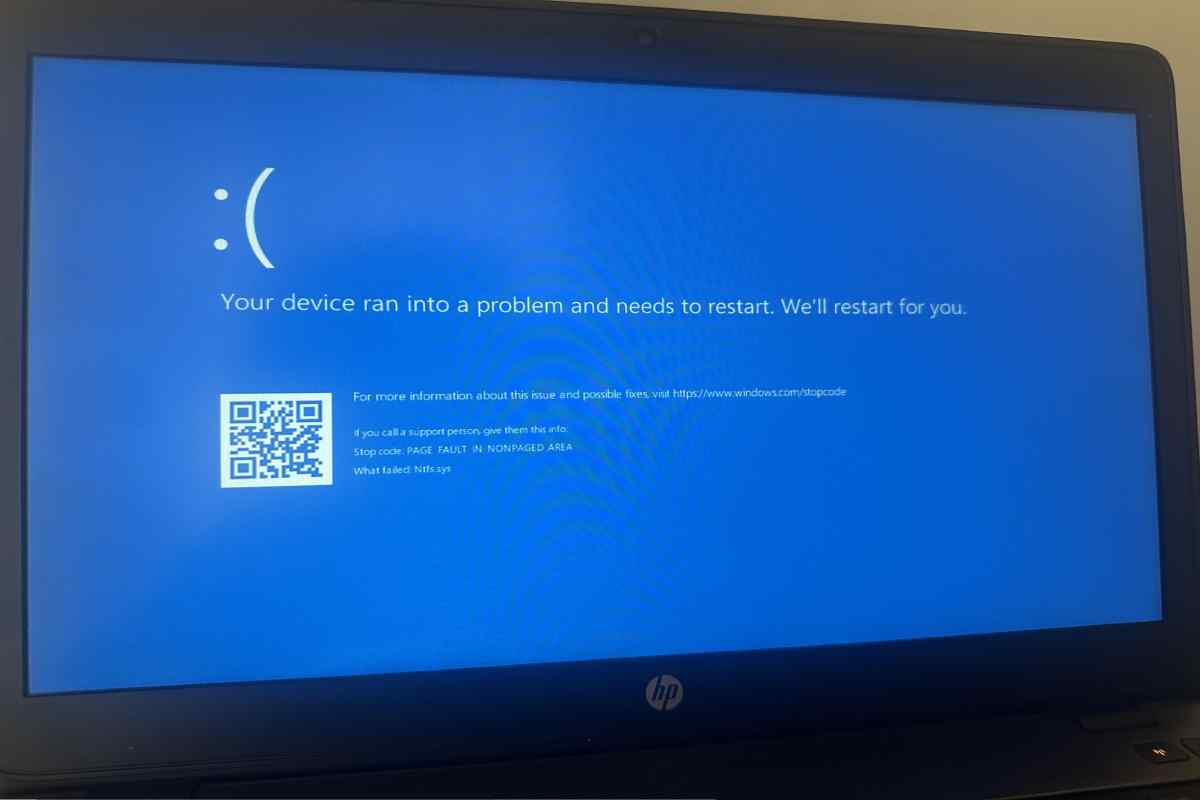
Blue Screen Errors — commonly referred to as the Blue Screen of Death (BSOD) — are among the most frustrating problems Windows users can encounter. When your HP laptop displays a blue screen with a STOP code, it means Windows has encountered a critical error and shut itself down to protect your data and hardware.
In this fully researched article, we’ll walk you through how to resolve blue screen errors on HP laptops with practical steps, including Windows safe mode troubleshooting, Windows event viewer errors analysis, hardware and software fixes, and proactive tips tailored for users in markets like India, the United States, the UK, Canada, Australia, and more.
Table of Contents
Understanding the BSOD: What It Is and Why It Happens
A Blue Screen Error indicates a critical system fault. Windows displays this screen with a STOP code (e.g., IRQL_NOT_LESS_OR_EQUAL, PAGE_FAULT_IN_NONPAGED_AREA). These codes help identify the source of the crash — hardware, drivers, or system files.
Common BSOD Culprits
| Category | Potential Cause | Example STOP Code |
|---|---|---|
| Drivers | Corrupted or outdated device drivers | DRIVER_PNP_WATCHDOG |
| System Files | Corrupted Windows files | BAD_SYSTEM_CONFIG_INFO |
| Hardware | Faulty RAM, overheating, storage issues | WHEA_UNCORRECTABLE_ERROR |
| Software Conflicts | Third-party antivirus, recent updates | UNEXPECTED_KERNEL_MODE_TRAP |
| Sources: HP & Windows support communities (HP Community) |
Step-by-Step: How to Resolve Blue Screen Errors on HP Laptops
Follow this systematic approach from basic to advanced troubleshooting.
1. Check the STOP Code and Initial Symptoms
When the BSOD appears, note the STOP code and error message. This code provides essential clues about the likely issue. Some errors relate to hardware issues (e.g., overheating) while others point to driver or system file corruption.
2. Boot Into Windows Safe Mode (Critical First Step)
Windows safe mode troubleshooting allows you to start Windows with minimal drivers and services. If the BSOD doesn’t occur in safe mode, the problem is usually software-related.
Steps to Enter Safe Mode:
-
Restart your laptop.
-
Press F8 or Shift + F8 during boot (for older systems) or:
-
From the Windows Recovery screen:
Troubleshoot → Advanced options → Startup Settings → Restart → Press 4 for Safe Mode
-
-
Safe Mode with Networking = Press F5 if you need network access.
3. Review Windows Event Viewer Errors for Root Causes
Windows records detailed logs for crashes. You can use Windows Event Viewer to find error messages that correlate with the BSOD timestamp.
How to Use Event Viewer:
-
Press Win + R → type
eventvwr.msc→ Enter. -
Navigate: Windows Logs → System.
-
Filter for Critical and Error events around the crash time.
This helps pinpoint problematic drivers or system components that precede a BSOD.
Core Fixes (Software + System)
After you can boot into Safe Mode, proceed with the following:
✔ Update or Roll Back Drivers
-
Open Device Manager.
-
Look for devices with warning icons.
-
Right-click → Update Driver or Roll Back if a recent update caused issues.
-
Update graphics, chipset, and network drivers — especially relevant for HP laptops.
✔ Uninstall Recent Windows Updates
If the BSOD started after a recent update:
-
Go to Settings → Windows Update → Update history → Uninstall updates.
-
Remove the latest changes and restart.
This often resolves update-related BSOD issues.
✔ System Restore / Reset Windows
If the above steps don’t work:
-
Use System Restore to revert to a point when your system was stable.
-
If Safe Mode isn’t accessible: boot into Advanced Startup → System Restore.
Last resort: Reset this PC (keep files if possible), or perform a clean Windows install.
Hardware Troubleshooting
Sometimes BSODs are not software-related but caused by hardware issues. These steps help rule that out:
1. Run HP Hardware Diagnostics
HP laptops have built-in diagnostics (press F2 at startup) to test:
-
RAM
-
Hard drive / SSD
-
CPU
-
Motherboard/subsystems
This can reveal hardware faults hidden beneath software symptoms.
2. Check for Overheating
Overheating components often trigger BSODs:
-
Use tools like HWMonitor to check CPU/GPU temps.
-
Clean vents and fans.
-
Ensure proper cooling — poor thermal performance can produce STOP errors.
HP Laptops: Market-wise Repair Cost Estimates (2026)
Below is a research table summarizing typical service prices for hardware fixes in various countries:
| Country | RAM Replacement | SSD/HDD Repair | Full Motherboard Repair | Diagnosis/Service Fee |
|---|---|---|---|---|
| India | ₹1,000–₹2,500 | ₹2,000–₹5,000 | ₹8,000–₹18,000 | ₹500–₹1,500 |
| USA | $50–$120 | $100–$250 | $300–$500 | $50–$100 |
| UK | £40–£100 | £80–£180 | £250–£450 | £40–£80 |
| Australia | AU$70–AU$150 | AU$120–AU$300 | AU$350–AU$600 | AU$60–AU$120 |
| Canada | CA$60–CA$130 | CA$110–CA$270 | CA$320–CA$520 | CA$50–CA$90 |
Prevent Future Blue Screen Errors
Keep your HP laptop running smoothly by following these best practices:
-
Keep Windows and drivers updated at all times.
-
Create system restore points before installing major updates.
-
Use HP Support Assistant for driver & BIOS updates.
-
Monitor hardware health to preempt failures.
Final Thoughts
Learning how to resolve blue screen errors on HP laptops requires patience, a structured approach, and knowledge of both software and hardware troubleshooting. With the right steps — safe mode diagnostics, Event Viewer logs, system repairs, and hardware tests — most BSOD issues can be resolved without costly service visits.
If problems persist, don’t hesitate to contact HP Support or an authorised service centre — especially for hardware faults detected in diagnostics.