
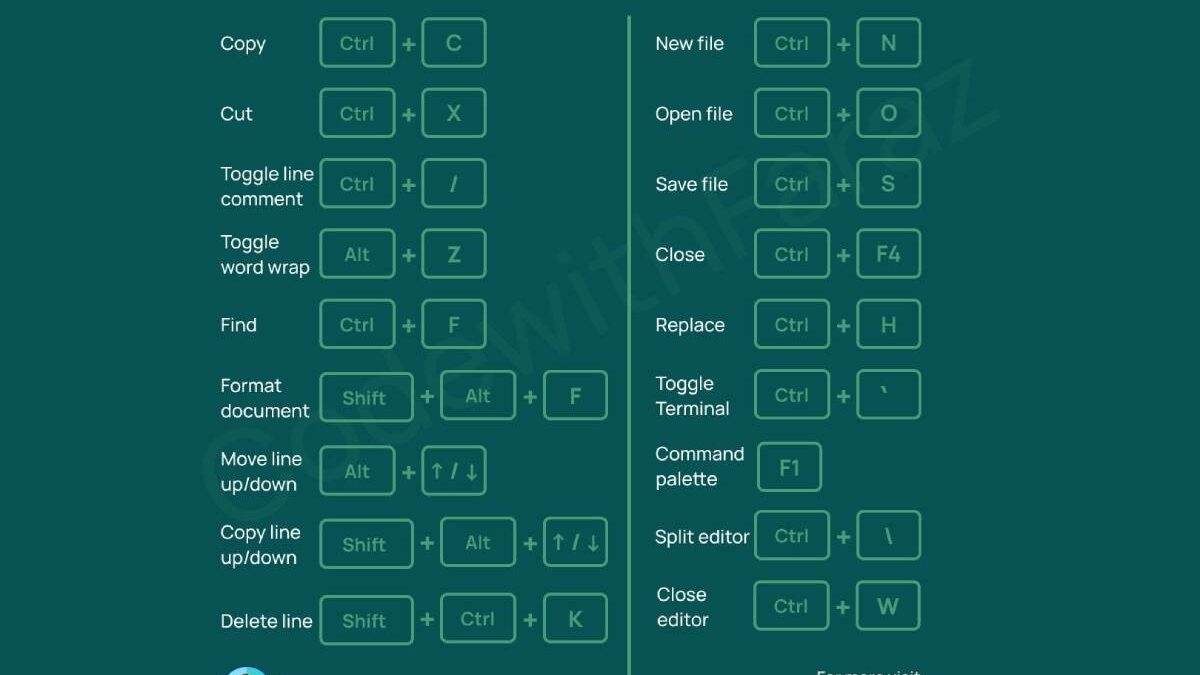
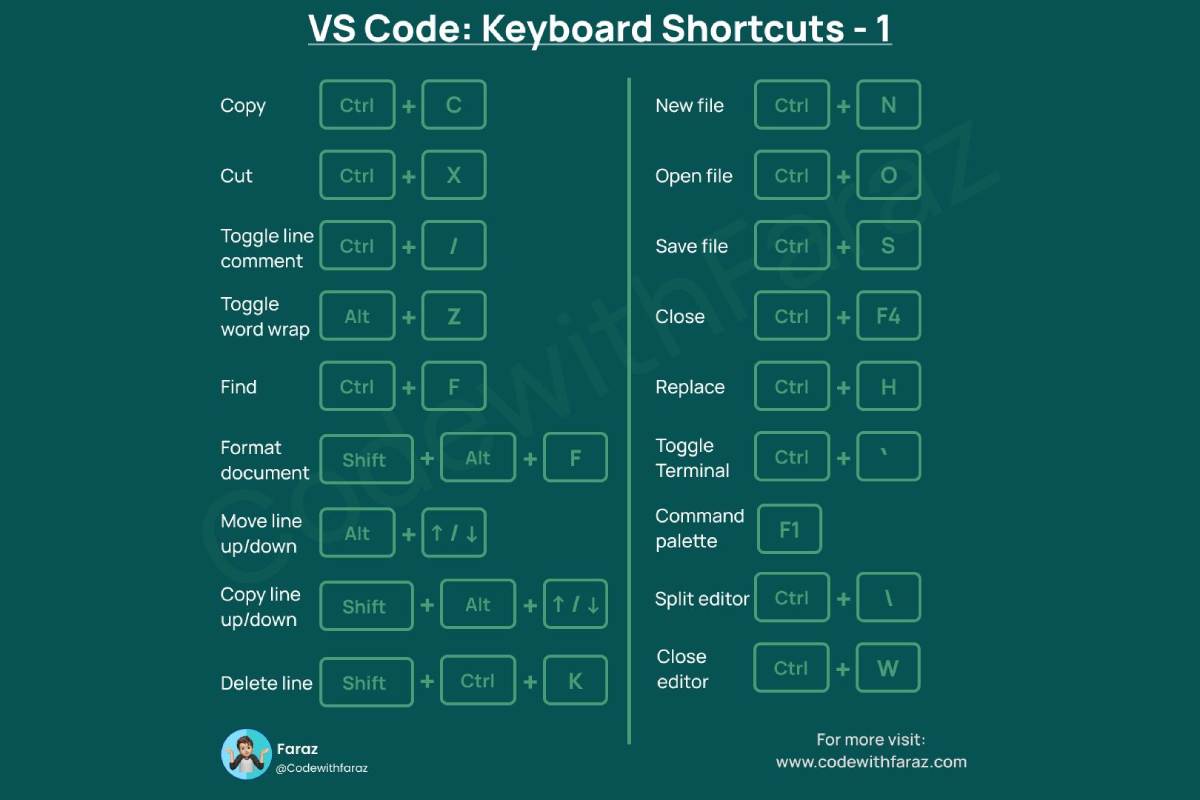
VS Code has evolved to be the code editor of choice to millions of developers across the globe. Its lightweight nature, its strong extensions and its rich customization features make it effective in any application; be it web development and scripting or enterprise level applications. Nevertheless, the ability to support widely the use of keyboard shortcuts can be considered one of the characteristics that indeed make VS Code stand out.
Understanding the best keyboard shortcuts to use in VS Code developers can make the difference in the productivity level, reduced usage of the mouse and improved general flow of the code. You may be only an inexperienced user who needs to know the ins and outs of this software or you may be a professional developer who has to streamline his workflow with the aid of the most useful VS Code shortcuts; this tool shows them in the conveniently structured, easy-to-find format.
Table of Contents
Why Keyboard Shortcuts Matter for VS Code Developers?
The speed is not the only thing in using keyboard shortcuts; it is the cognitive flow and efficiency.
Advantages of VS Code Keyboard Shortcuts
- Quick navigation of files and code.
- Less context switching between mouse and keyboard.
- Enhanced concentration and coding speed.
- More comfortable posture and fewer tedious tensions.
- Enhanced productivity in mega projects.
Productivity Impact of Keyboard Shortcuts
| Task Type | Mouse-Based Workflow | Shortcut-Based Workflow |
| File navigation | Slower | Instant |
| Code editing | Interrupted | Continuous |
| Debugging | Menu-heavy | Streamlined |
| Refactoring | Manual | Efficient |
Developers who rely heavily on shortcuts often report noticeable improvements in speed and accuracy.
Understanding VS Code Keyboard Shortcut Conventions
Before diving into shortcuts, it’s important to understand how VS Code represents them.
Common Shortcut Symbols
| Symbol | Meaning |
| Ctrl | Control key (Windows/Linux) |
| Cmd | Command key (macOS) |
| Alt | Alternate key |
| Shift | Shift key |
VS Code shortcuts differ slightly between operating systems, but the functionality remains the same.
Essential VS Code Keyboard Shortcuts (Must-Know Basics)
These are the foundational shortcuts every VS Code developer should know.
Core Shortcuts for Everyday Use
| Action | Windows / Linux | macOS |
| Open Command Palette | Ctrl + Shift + P | Cmd + Shift + P |
| Open File | Ctrl + P | Cmd + P |
| New File | Ctrl + N | Cmd + N |
| Save File | Ctrl + S | Cmd + S |
| Close Editor | Ctrl + W | Cmd + W |
The Command Palette is especially important, as it provides access to almost every VS Code feature.
File and Project Navigation Shortcuts
Efficient file navigation is crucial when working on large codebases.
File Navigation Shortcuts
| Action | Windows / Linux | macOS |
| Quick file open | Ctrl + P | Cmd + P |
| Switch between open files | Ctrl + Tab | Cmd + Tab |
| Open Explorer | Ctrl + Shift + E | Cmd + Shift + E |
| Toggle sidebar | Ctrl + B | Cmd + B |
Why These Shortcuts Matter
- Faster switching between files
- Reduced need to browse folders manually
- Ideal for monorepos and large projects
Code Editing Shortcuts for Faster Development
Code editing shortcuts save time on repetitive tasks.
Common Editing Shortcuts
| Action | Windows / Linux | macOS |
| Copy line | Ctrl + C | Cmd + C |
| Cut line | Ctrl + X | Cmd + X |
| Move line up/down | Alt + ↑ / ↓ | Option + ↑ / ↓ |
| Duplicate line | Shift + Alt + ↓ | Shift + Option + ↓ |
| Delete line | Ctrl + Shift + K | Cmd + Shift + K |
Advantages of Editing Shortcuts
- Faster refactoring
- Cleaner code manipulation
- Less manual selection
Multi-Cursor and Selection Shortcuts
Multi-cursor editing is one of VS Code’s most powerful features.
Multi-Cursor Shortcuts
| Action | Windows / Linux | macOS |
| Add cursor | Alt + Click | Option + Click |
| Select next match | Ctrl + D | Cmd + D |
| Select all matches | Ctrl + Shift + L | Cmd + Shift + L |
| Column selection | Shift + Alt + Drag | Shift + Option + Drag |
When to Use Multi-Cursor Editing
- Renaming variables
- Editing repeated code blocks
- Updating HTML attributes
- Refactoring CSS classes
Search and Replace Shortcuts
Search efficiency directly affects development speed.
Search-Related Shortcuts
| Action | Windows / Linux | macOS |
| Find | Ctrl + F | Cmd + F |
| Find in files | Ctrl + Shift + F | Cmd + Shift + F |
| Replace | Ctrl + H | Cmd + H |
| Replace in files | Ctrl + Shift + H | Cmd + Shift + H |
Search Productivity Tips
- Use regex for advanced searches
- Combine filters for large projects
- Preview changes before replacing
Code Navigation Shortcuts for Large Codebases
Understanding and navigating code quickly is essential for professional developers.
Navigation Shortcuts
| Action | Windows / Linux | macOS |
| Go to definition | F12 | F12 |
| Peek definition | Alt + F12 | Option + F12 |
| Go to line | Ctrl + G | Cmd + G |
| Go to symbol | Ctrl + Shift + O | Cmd + Shift + O |
These shortcuts are invaluable when working with unfamiliar or legacy code.
Formatting and Refactoring Shortcuts
Clean code improves readability and maintainability.
Formatting Shortcuts
| Action | Windows / Linux | macOS |
| Format document | Shift + Alt + F | Shift + Option + F |
| Format selection | Ctrl + K, Ctrl + F | Cmd + K, Cmd + F |
Refactoring Benefits
- Consistent code style
- Reduced syntax errors
- Faster collaboration
IntelliSense and Autocomplete Shortcuts
VS Code’s IntelliSense system boosts coding accuracy.
IntelliSense Shortcuts
| Action | Windows / Linux | macOS |
| Trigger suggestion | Ctrl + Space | Ctrl + Space |
| Show parameter info | Ctrl + Shift + Space | Cmd + Shift + Space |
| Quick fix | Ctrl + . | Cmd + . |
Using these shortcuts minimizes syntax errors and improves code quality.
Debugging Keyboard Shortcuts
Debugging efficiently saves hours of troubleshooting time.
Debugging Shortcuts
| Action | Windows / Linux | macOS |
| Start debugging | F5 | F5 |
| Step over | F10 | F10 |
| Step into | F11 | F11 |
| Toggle breakpoint | F9 | F9 |
Debugging Workflow Advantages
- Faster issue isolation
- Less manual breakpoint management
- Better understanding of runtime behavior
Terminal and Command Line Shortcuts
VS Code’s integrated terminal reduces context switching.
Terminal Shortcuts
| Action | Windows / Linux | macOS |
| Open terminal | Ctrl + ` | Cmd + ` |
| New terminal | Ctrl + Shift + ` | Cmd + Shift + ` |
| Switch terminals | Ctrl + PageUp/PageDown | Cmd + PageUp/PageDown |
Git and Version Control Shortcuts
Version control is a daily task for most developers.
Git Shortcuts in VS Code
| Action | Windows / Linux | macOS |
| Open source control | Ctrl + Shift + G | Cmd + Shift + G |
| Commit changes | Ctrl + Enter | Cmd + Enter |
| Stage file | Ctrl + Shift + A | Cmd + Shift + A |
These shortcuts streamline Git workflows without leaving the editor.
UI and Layout Management Shortcuts
Customizing your workspace improves focus.
Layout Shortcuts
| Action | Windows / Linux | macOS |
| Split editor | Ctrl + \ | Cmd + \ |
| Focus editor group | Ctrl + 1/2/3 | Cmd + 1/2/3 |
| Toggle fullscreen | F11 | Ctrl + Cmd + F |
Language-Specific Shortcuts for Web Developers
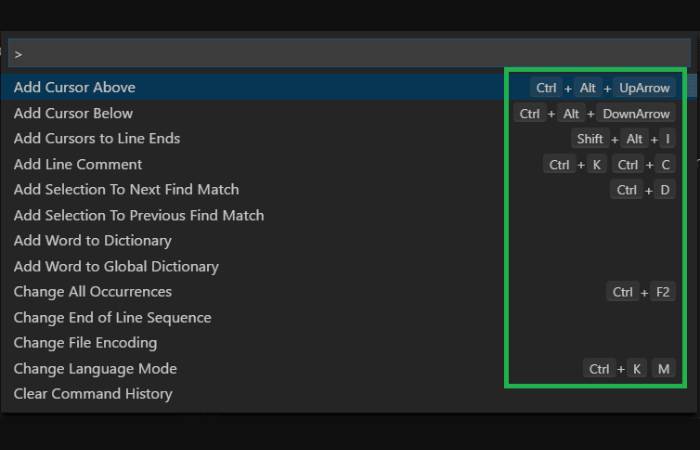
VS Code adapts shortcuts based on language support.
Web Development Use Cases
- HTML tag matching
- CSS property suggestions
- JavaScript refactoring
- TypeScript error navigation
| Task | Shortcut Benefit |
| JSX formatting | Faster cleanup |
| CSS refactor | Fewer mistakes |
| JS debugging | Improved clarity |
Customizing Keyboard Shortcuts in VS Code
Every developer has unique preferences.
How to Customize Shortcuts
- Open Command Palette
- Search “Keyboard Shortcuts”
- Modify or add new bindings
Why Customization Matters
- Matches personal workflow
- Reduces hand movement
- Improves long-term productivity
Common Mistakes Developers Make with Shortcuts
| Mistake | Impact |
| Learning too many at once | Overwhelm |
| Ignoring customization | Inefficiency |
| Not practicing | Poor retention |
Learn a couple of shortcuts at a time.
Shortcut Strategy of Learning as a developer
Learning strategy suggested.
- You should first learn some of the essential shortcuts.
- Practice daily usage
- Gradually add complicated shortcuts.
- Customize based on workflow
The consistency will result in mastery.
Frequently Asked Questions
Do they all platforms support keyboard shortcuts?
No, Windows/Linux has Ctrl, whereas macOS has Cmd.
Is it possible that extensions are incompatible with shortcuts?
Yes, however, it is possible to settle disputes in shortcut settings.
Is faster coding enhanced by shortcuts?
Yes, in large measure where used on a regular basis.
Final Thoughts
One of the most efficient but the easiest methods of increasing productivity is learning and using the most effective keyboard shortcuts in VS Code developers. Such shortcuts save time and improve focus and assist the developer to move around the complex codebase with confidence.
The guide is a collection of the most helpful and commonly used VS Code shortcuts based on the best developer workflows and official examples. No matter how much time you spend on the code, be it full-time or learning to code, being fluent in these shortcuts will give you extra time, save you time and time of experience in general.