
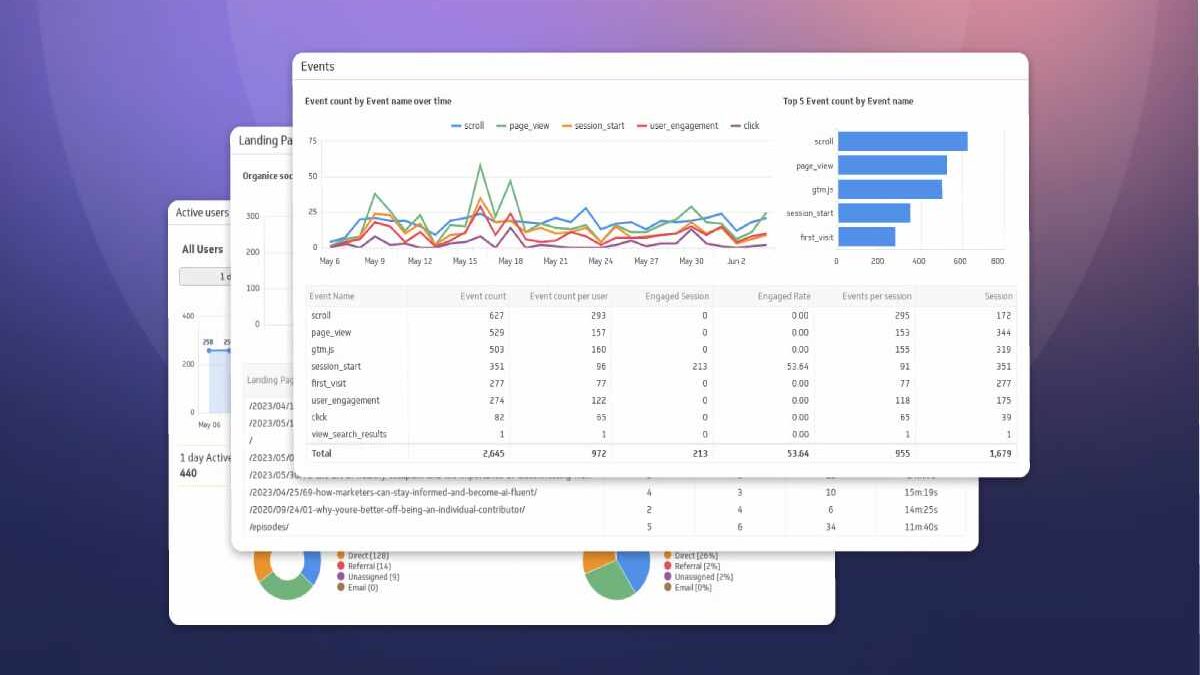
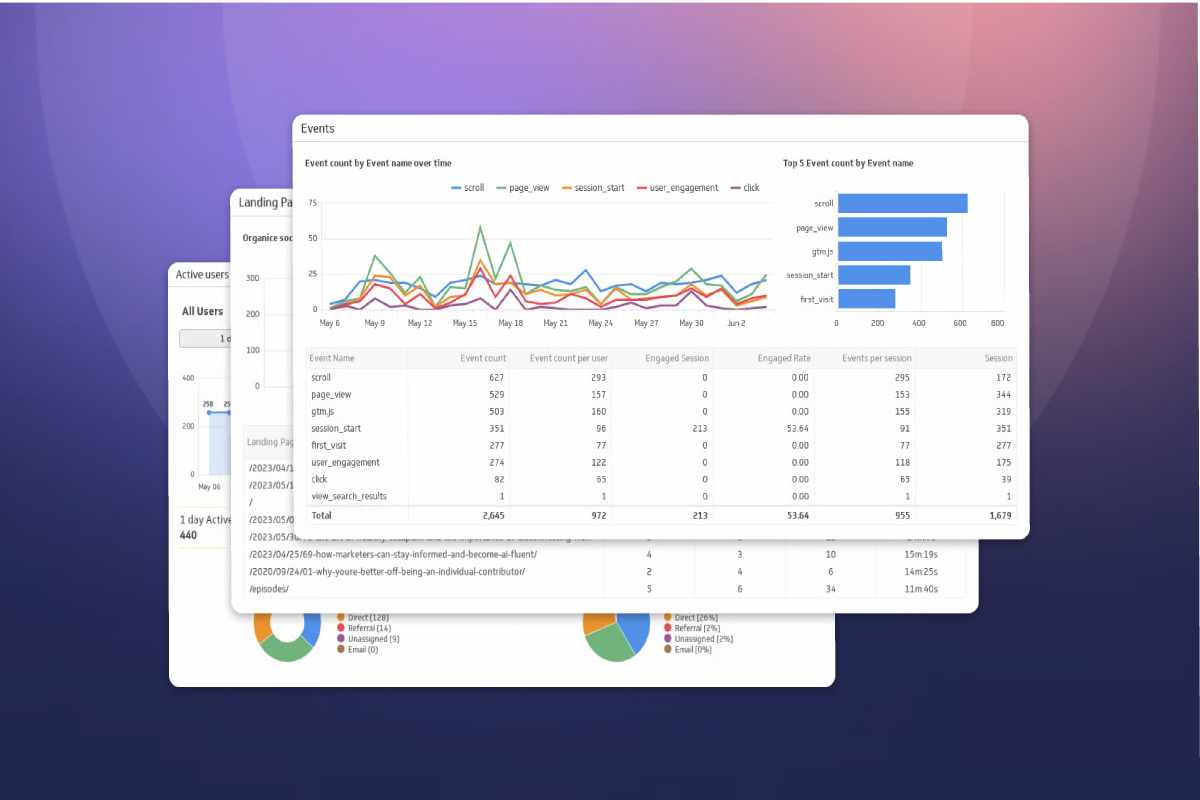
Tracking digital marketing KPIs used to be straightforward in Universal Analytics. GA4 changed the model — but once configured correctly, it gives far deeper, more flexible insight into performance across SEO, paid media, email, and content.
This practical, question‑style guide shows exactly how to track digital marketing KPIs in GA4 in 2026, without over‑engineering your setup. It’s designed to support your broader KPI framework and feed clean data into your SEO and marketing dashboards.
Table of Contents
What KPIs You Should Track in GA4
GA4 is event‑based, so the KPIs you track should map directly to user actions that create business value, not just surface‑level engagement.
Core Traffic & Engagement KPIs
Track these to understand visibility and content quality:
- Users & Sessions – baseline demand and reach
- Engaged sessions – sessions lasting 10+ seconds, with 2+ views or a conversion
- Engagement rate – GA4’s replacement for bounce rate
- Average engagement time – content depth and relevance
These KPIs are essential for SEO, content marketing, and top‑of‑funnel analysis.
Conversion & Revenue KPIs
These should be treated as primary KPIs in GA4:
- Leads generated (form submissions, demo requests)
- Purchases & revenue (for ecommerce)
- Sign‑ups (email, account, free trials)
- Conversion rate by channel
If a KPI cannot be tied to revenue or pipeline impact, it should not be prioritized.
Channel‑Specific KPIs
GA4 allows KPI breakdowns by default channel group:
- Organic search: conversions, engagement rate, landing‑page performance
- Paid media: cost‑adjusted conversions (via Google Ads integration)
- Email: returning users, assisted conversions
- Content: scroll depth events, engagement time per page
These KPIs align directly with the framework outlined in your Digital Marketing KPIs & Email Strategy guide.
How to Set Up Key Events and Conversions (Leads, Purchases, Signups)
GA4 does not track “goals” by default — you must explicitly configure key events and mark them as conversions.
Step 1: Identify Your True Conversion Events
Typical high‑value events include:
generate_lead(form submission)purchase(transaction completed)sign_up(account or email signup)contact(click‑to‑call or contact form submit)
Avoid tracking micro‑events (scrolls, clicks) as conversions.
Step 2: Create or Verify Events in GA4
- Go to Admin → Events
- Check if your event already exists (GA4 auto‑tracks many events)
- If not, click Create event and define conditions
For example:
- Event name:
generate_lead - Condition:
event_name = form_submitANDpage_location contains /thank-you/
Step 3: Mark Events as Conversions
- Navigate to Admin → Conversions
- Toggle your key events as conversions
From this point forward, GA4 will treat them as primary KPIs across all reports.
Step 4: Validate Data Accuracy
Use DebugView or real‑time reports to confirm:
- Events fire once per action
- Conversions are not double‑counted
- Source/medium attribution is correct
Clean conversion tracking is critical before building dashboards.
Building a Simple GA4 KPI Report (Explorations + Standard Reports)
You do not need complex tooling to create useful GA4 KPI reports.
Option 1: Standard GA4 Reports (Fast Setup)
Recommended default reports:
- Reports → Acquisition → Traffic acquisition
Track conversions, engagement, and revenue by channel - Reports → Engagement → Pages and screens
Identify top‑performing content by engagement and conversions - Reports → Monetization → Ecommerce purchases
Revenue‑driven KPIs for ecommerce sites
Customize reports by adding:
- Conversions
- Engagement rate
- Total revenue
Option 2: Explorations (Custom KPI Views)
Explorations are ideal for executive‑level KPI summaries.
Suggested exploration setup:
- Rows: Default channel group
- Columns: Conversion events
- Metrics:
- Conversions
- Conversion rate
- Engagement rate
- Revenue (if applicable)
Save one exploration per core goal (leads, sales, signups) to avoid clutter.
Common GA4 Tracking Mistakes to Avoid
GA4 issues usually stem from configuration, not the platform itself.
Tracking Too Many Conversions
Marking every click as a conversion inflates data and destroys clarity. Limit conversions to business‑critical actions only.
Ignoring Channel Attribution
Failing to tag campaigns with proper UTM parameters leads to:
- Misattributed conversions
- Overvalued direct traffic
- Underreported email and paid media performance
Not Filtering Internal Traffic
Always exclude:
- Internal IPs
- Developer testing
- Agency access
Unfiltered data skews engagement and conversion rates.
Treating GA4 Like Universal Analytics
GA4 is user‑centric and event‑based. Stop relying on pageviews alone — focus on engaged users and conversions.
How to Connect GA4 Data with Your SEO/Marketing Dashboard
GA4 becomes truly powerful when integrated into a broader reporting system.
Recommended KPI Flow
- GA4 – source of truth for user behavior and conversions
- Google Search Console – search visibility and query performance
- Dashboard tool (Looker Studio, BI, Sheets) – unified KPI view
GA4 KPIs you should export:
- Conversions by channel
- Engagement rate by landing page
- Revenue or lead volume trends
- Conversion rate over time
These metrics plug directly into your SEO reporting dashboard, allowing you to track performance across marketing efforts in one place.
If you’re defining what to measure before connecting the data, revisit the Digital Marketing KPIs & Email Strategy guide for KPI selection clarity.
Final Takeaway
GA4 is not just an analytics upgrade — it’s a KPI measurement framework.
When you:
- Track the right KPIs
- Configure clean conversion events
- Build focused reports
- Feed GA4 data into a unified dashboard
…you move from surface‑level analytics to decision‑ready marketing intelligence.
For KPI definitions, dashboard structure, and cross‑channel strategy, explore the related guides linked above and keep this article as your hands‑on GA4 tracking reference.