
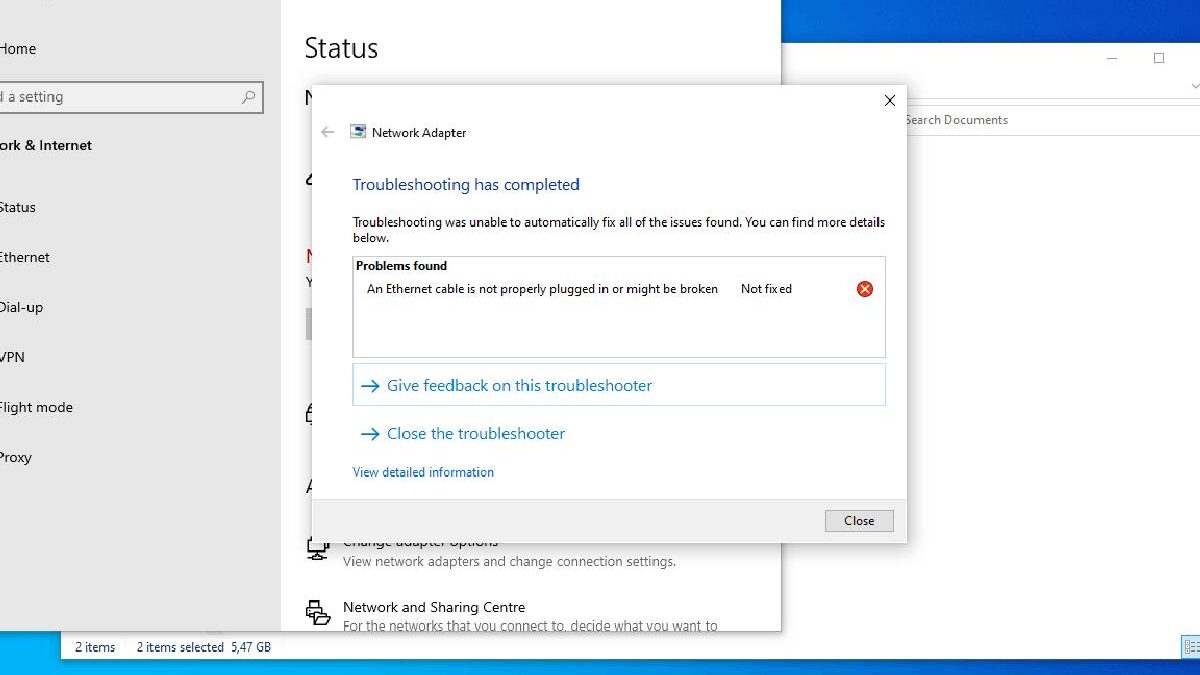
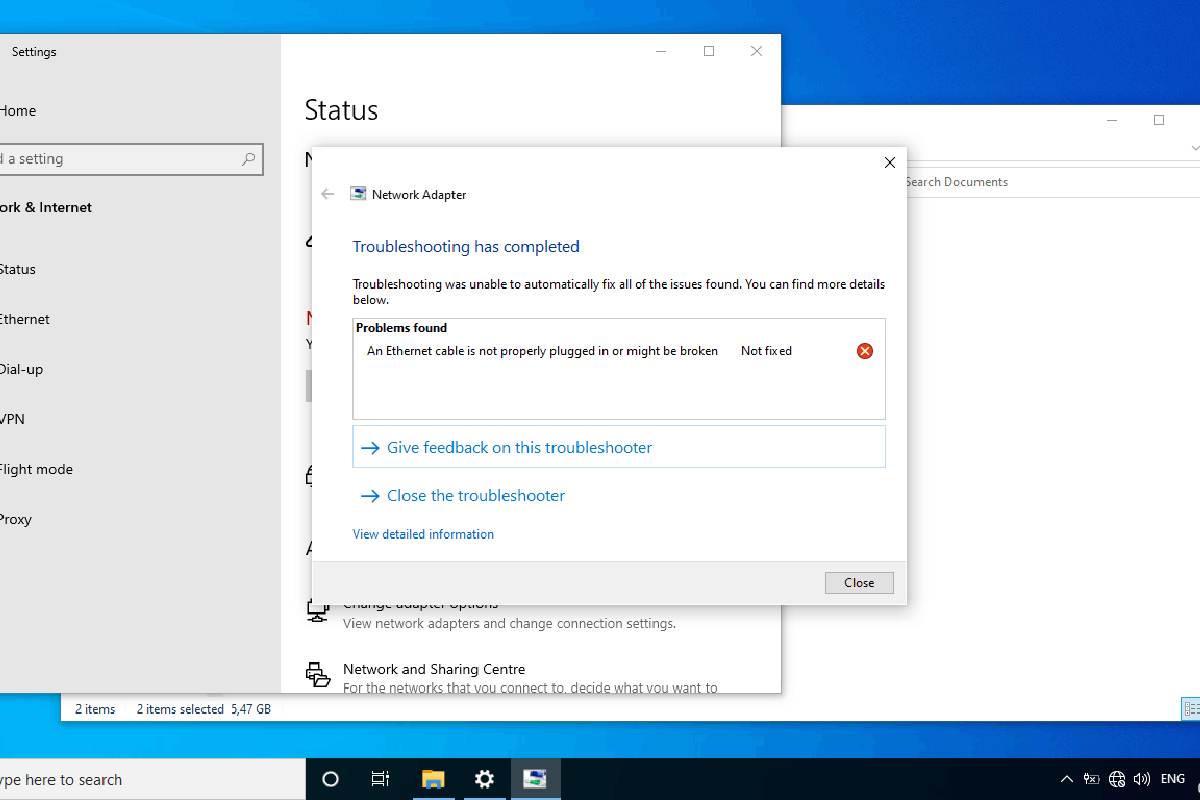
Among the most frequent problems of users of Windows 10, it is possible to identify Wi-Fi connectivity issues. Slow internet connectivity and lack of connection abruptly are only a few issues that can interrupt working, streaming, gaming and daily browsing in Wi-Fi connectivity. Although the reasons may be as easy as configuration errors, driver or hardware problems, most Wi-Fi problems in Windows 10 can be discovered and resolved without the assistance of a professional.
This comprehensive guide on troubleshooting Wi-Fi connection issues on Windows 10 is designed to help users identify the root cause of the problem and apply the right solution. Whether your Wi-Fi keeps dropping, won’t connect, or shows “No Internet, Secured,” this guide walks through every proven fix used by technicians and recommended by top-ranking support resources.
Table of Contents
Wi-Fi Explained: How Wi-Fi Works on Windows 10
Knowing how windows 10 connect to the wireless networks is always helpful before going into the troubleshooting.
Basic Wi-Fi Connection Flow
| Step | Description |
| Network detection | Windows scans for available Wi-Fi networks |
| Authentication | Password and security checks |
| IP assignment | Router assigns an IP address |
| Internet access | Data flows between device and ISP |
A failure at any of these stages can result in connectivity issues.
Common Wi-Fi Connection Issues on Windows 10
Different symptoms often indicate different underlying problems.
Most Reported Wi-Fi Problems
- Wi-Fi connected but no internet access
- Wi-Fi network not showing up
- Frequent disconnections
- Very slow Wi-Fi speed
- Limited or no connectivity error
- Wi-Fi option missing entirely
- Unable to connect to this network message
Wi-Fi Issue Types and Likely Causes
| Symptom | Likely Cause |
| No networks visible | Adapter disabled or driver issue |
| Connected, no internet | DNS or IP conflict |
| Drops frequently | Power management or interference |
| Slow speeds | Router settings or outdated drivers |
| Wi-Fi missing | Hardware or system corruption |
Initial Checks Before Advanced Troubleshooting
Always start with basic checks before changing system settings.
Quick Fix Checklist
- Restart your router and modem
- Restart your Windows 10 PC
- Check Wi-Fi on other devices
- Move closer to the router
- Disable airplane mode
- Ensure Wi-Fi is turned on
These simple steps resolve a surprising number of Wi-Fi issues.
Using Windows 10 Network Troubleshooter
Windows 10 includes a built-in diagnostic tool.
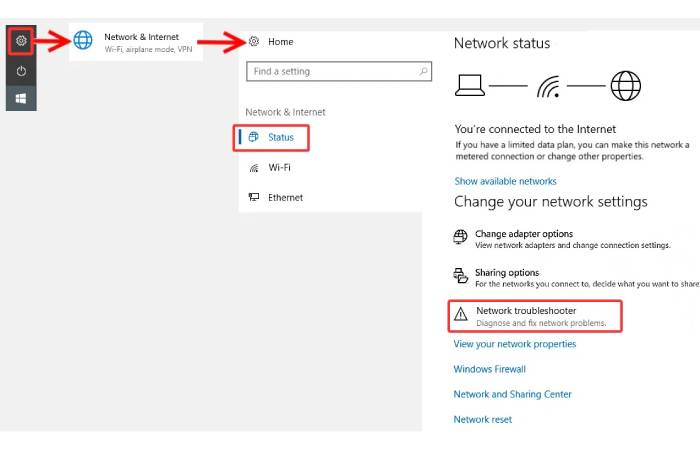
How to Run Network Troubleshooter
- Open Settings
- Go to Network & Internet
- Click Status
- Select Network troubleshooter
What the Troubleshooter Can Fix
| Issue Type | Auto-Fix Capability |
| Misconfigured adapter | Yes |
| IP address conflicts | Yes |
| Disabled network services | Yes |
| Driver issues | Partial |
While not perfect, it’s a good first diagnostic step.
Checking Wi-Fi Adapter Settings
Your Wi-Fi adapter may be disabled or misconfigured.
Enable Wi-Fi Adapter
- Open Control Panel
- Go to Network and Sharing Center
- Click Change adapter settings
- Right-click Wi-Fi
- Select Enable
Adapter Status Indicators
| Status | Meaning |
| Enabled | Adapter is active |
| Disabled | Wi-Fi turned off |
| Not present | Driver or hardware issue |
Updating or Reinstalling Wi-Fi Drivers
Outdated or corrupted drivers are a major cause of Wi-Fi problems.
Update Wi-Fi Drivers via Device Manager
- Right-click Start
- Open Device Manager
- Expand Network adapters
- Right-click Wi-Fi adapter
- Select Update driver
Driver Issues and Symptoms
| Driver Problem | Result |
| Outdated | Slow or unstable Wi-Fi |
| Corrupt | No connection |
| Missing | Wi-Fi option disappears |
Reinstalling the Driver
- Uninstall the adapter
- Restart the system
- Windows reinstalls the driver automatically
Resetting Network Settings in Windows 10
Network reset clears all configurations and restores defaults.
When to Use Network Reset
- Persistent connection issues
- VPN conflicts
- DNS problems
- After malware removal
How to Reset Network Settings
- Go to Settings
- Select Network & Internet
- Click Status
- Choose Network reset
What Network Reset Removes
| Removed Item | Impact |
| Saved Wi-Fi passwords | Need re-entry |
| VPN connections | Must reconfigure |
| Custom DNS | Reset to automatic |
Fixing “Connected but No Internet” Error
This is one of the most frustrating Wi-Fi problems.
Common Causes
- DNS server issues
- IP configuration errors
- Router misconfiguration
- ISP outages
DNS Troubleshooting Steps
- Switch DNS to Google (8.8.8.8)
- Flush DNS cache
- Restart router
Manual DNS Configuration
| DNS Provider | Primary | Secondary |
| 8.8.8.8 | 8.8.4.4 | |
| Cloudflare | 1.1.1.1 | 1.0.0.1 |
Fixing Wi-Fi Keeps Disconnecting on Windows 10
Frequent drops usually indicate power or signal issues.
Disable Power Saving for Wi-Fi Adapter
- Open Device Manager
- Open adapter properties
- Go to Power Management
- Uncheck “Allow the computer to turn off…”
Causes of Wi-Fi Drops
| Cause | Solution |
| Power saving | Disable adapter sleep |
| Interference | Change router channel |
| Weak signal | Use Wi-Fi extender |
| Old firmware | Update router |
Wi-Fi Network Not Showing Up
If your Wi-Fi network doesn’t appear, the issue may be deeper.
Possible Reasons
- Router broadcasting disabled
- Unsupported Wi-Fi band
- Driver incompatibility
- Hidden SSID
2.4GHz vs 5GHz Compatibility
| Band | Range | Speed | Compatibility |
| 2.4GHz | Long | Lower | High |
| 5GHz | Short | Higher | Medium |
Older laptops may not support 5GHz networks.
Fixing Missing Wi-Fi Option in Windows 10
If Wi-Fi disappears completely, it’s often a driver or system issue.
Troubleshooting Steps
- Check Device Manager for adapter
- Enable WLAN AutoConfig service
- Update Windows
- Check BIOS settings
WLAN AutoConfig Service
| Setting | Value |
| Startup type | Automatic |
| Status | Running |
Resetting TCP/IP Stack Using Command Prompt
Advanced networking issues may require command-line fixes.
Commands to Run (Admin CMD)
- Reset TCP/IP
- Flush DNS
- Renew IP address
When Command Reset Helps
| Scenario | Effectiveness |
| IP conflicts | High |
| DNS corruption | High |
| VPN residue | Medium |
Checking Router and Modem Issues
Not all Wi-Fi problems are caused by Windows.
Router Troubleshooting Checklist
- Restart router
- Update firmware
- Change Wi-Fi channel
- Disable MAC filtering
- Check DHCP settings
Router Problems vs Windows Problems
| Symptom | Likely Cause |
| All devices fail | Router/ISP |
| Only Windows fails | OS/driver |
| Slow speeds everywhere | Network congestion |
Windows 10 Updates and Wi-Fi Issues
Some updates can temporarily break Wi-Fi connectivity.
What to Do After a Bad Update
- Roll back network drivers
- Uninstall recent update
- Wait for patch update
Update-Related Wi-Fi Problems
| Update Type | Impact |
| Feature update | Driver compatibility |
| Security update | Firewall changes |
Malware and Security Software Conflicts
Security tools can block network access.
Signs of Security Interference
- Internet works in Safe Mode
- Firewall blocking connections
- VPN causing conflicts
Temporary Testing Steps
- Disable third-party antivirus
- Disconnect VPN
- Test connection
Improving Slow Wi-Fi Speed on Windows 10
Speed issues don’t always mean connection failure.
Common Speed Bottlenecks
- Background updates
- Network congestion
- Outdated Wi-Fi standard
- Poor signal strength
Speed Optimization Tips
| Method | Impact |
| Update drivers | Medium |
| Use Ethernet | High |
| Change DNS | Low |
| Upgrade router | High |
Advanced Wi-Fi Troubleshooting Techniques
For persistent issues, advanced diagnostics may be required.
Advanced Checks
- Event Viewer network logs
- Safe Mode with networking
- Clean boot testing
- Hardware diagnostics
When to Consider Hardware Failure
| Sign | Meaning |
| Adapter not detected | Hardware issue |
| Works intermittently | Loose antenna |
| Fails across OS | Physical damage |
Preventing Future Wi-Fi Issues on Windows 10
Prevention reduces recurring problems.
Best Practices
- Keep drivers updated
- Avoid sketchy VPN software
- Maintain router firmware
- Use surge protection
- Perform regular malware scans
Questions Most Asked Wi-Fi
Why does my Wi-Fi keep disconnecting on Windows 10?
The most common causes are power management settings, outdated drivers, or signal interference.
How do I reset Wi-Fi on Windows 10?
Use Network reset in Network and Internet.
Why is the Wi-Fi connected yet there is no internet?
Common causes are DNS problems, IP contention or even ISP outages.
Final Thoughts
It does not need any special technical knowledge to troubleshoot the problems of Wi-Fi connection on Windows 10, although it involves a strong systematization. With the basic checks solved at the start and gradually advancing to the driver, network, and router-level solutions, most connectivity issues can be solved successfully.
This is a collection of known solutions applied by IT pros and suggested in the best-ranking support sites. Regardless of whether it is a lost Wi-Fi option, unreliable connections, or low speeds, the steps mentioned above are a sure guide to the diagnosis and solution.
Regular system updates, up to date drivers and optimum network settings will allow you to have a stable Wi-Fi in Windows 10 in the long run.